Friday, September 12, 2014

How to calculate total no. of user visiting your site.

Step 1: Create a New Project in Visual Studio 2008 as shown in below Figure:


Step 2: Select Asp.net Web Application template from the list of template and name it DemoApplication  as shown below:-


Step 3:- Now we need to add global.asax file. So right Click on your website name from Solution explorer -> Add New Item -> Global Application Class. It will be added in the root directory of your website with the name "Global.asax" as shown in  below two images.


Step 4: First Modify Default.aspx page as below:

Step 5:- Now open global.asax file
  •  From the above image we can see that Global class is inheriting from System.web.HttpApplication.
  •   It methods, properties, and events that are common to all application objects in an ASP.NET application
  •  Now in order to explore more about httpApplication class we are taking example of calculating total No. of User currently accessing a webpage.

Global.asax.cs Code:

protected void Application_Start(object sender, EventArgs e)
        {
            Application["UserCount"] = 0;
        }

        protected void Session_Start(object sender, EventArgs e)
        {
            Application.Lock();//locks access to httpapplicationstate variable to facilitate access synchronization
            Application["UserCount"] = Convert.ToInt32(Application["UserCount"]) + 1;
            Application.UnLock();//release the locks.
        }

        protected void Session_End(object sender, EventArgs e)
        {
            Application.Lock();//locks access to httpapplicationstate variable to facilitate access synchronization
            Application["UserCount"] = Convert.ToInt32(Application["UserCount"]) - 1;
            Application.UnLock();//release the locks
            // Session.Abandon();
        }

Global.asax code Explanation:-
Application_Start:- Here we can place code which runs on application start.Here we have declare Application variable Application[“UserCount”] which is initialized to zero to keep track of user who have currently opened a webpage.
Session_Start:- This method includes code that runs when a new session is started.In this method first we are locking an application object Application[“UserCount”] to facilitate access synchronization and then we are incrementing the variable value which implies that a new user has started a session and then releasing a lock,so that other users session data can be captured.
Session_End:- This method includes code that runs when a session is ended. In this method first we are locking an application object Application[“UserCount”] to facilitate access synchronization and then we are decrementing the variable value to indicate user session has ended and then releasing a lock, so that other users session data can be captured.


Step 6: Now run the application by pressing f5


Step 7:- Now open different browser and copy the url from the first browser and paste it in the new open browser.


By opening a new browser. It is creating a new session for the user on the same machine therefore it is incrementing an application object value.
Note:-We can also set session timeout property in the web.config file to timeout the session after a certain interval of time.


Wednesday, September 3, 2014

How to Send an Email in Asp.net using Gmail

Introduction:In this article you are going to learn how to send an Email in Asp.net using Gmail.

Step 1:Create a new Empty Web Application using Visual Studio.

Step 2:Right Click Application name in Server Explorer then Select Add then New Item.

Step 3:Select WebForm from the list of Templates and named it Email and Click Add.

Step 4: Now Open Email.aspx and copy below Code in the Form Tag.

 <center>
    <div>
        <table width="50%">
            <tr>
                <td style="width:2%;">
                </td>
                <td style="width:30%;">
                </td>
            </tr>
            <tr>
                <td>
             
                </td>
                <td>
                    <h2>How to send an Email in Aps.net using Gmail</h2>
                </td>
            </tr>
            <tr>
                <td>
                 
                </td>
                <td>
                    <asp:Label ID="lblMessage" runat="server" ForeColor="Green"></asp:Label>
                </td>
            </tr>
            <tr>
                <td>
                    <asp:Label ID="lblTo" runat="server" Text="To"></asp:Label>
                </td>
                <td>
                    <asp:TextBox ID="txtTo" runat="server"></asp:TextBox>
                    <asp:RequiredFieldValidator ID="rfv_To" runat="server" ErrorMessage="*" ControlToValidate="txtTo" ForeColor="Red"></asp:RequiredFieldValidator>
                </td>
            </tr>
            <tr>
                <td>
                    <asp:Label ID="lblMessageTitle" runat="server" Text="Title"></asp:Label>
                </td>
                <td>
                    <asp:TextBox ID="txtTitle" runat="server"></asp:TextBox>
                    <asp:RequiredFieldValidator ID="rfv_Title" runat="server" ErrorMessage="*" ControlToValidate="txtTitle" ForeColor="Red"></asp:RequiredFieldValidator>
                </td>
            </tr>
            <tr>
                <td>
                    <asp:Label ID="lblMessageBody" runat="server" Text="Body"></asp:Label>
                </td>
                <td>
                    <asp:TextBox ID="txtBody" runat="server" TextMode="MultiLine" Columns="15" Rows="5"></asp:TextBox>
                    <asp:RequiredFieldValidator ID="rfv_Body" runat="server" ErrorMessage="*" ControlToValidate="txtBody" ForeColor="Red"></asp:RequiredFieldValidator>
                </td>
            </tr>
            <tr>
                <td>
                 
                </td>
                <td>
                <asp:Button ID="btnSend" runat="server" Text="Send" onclick="btnSend_Click" />&nbsp;
                    <asp:Button ID="btnReset" runat="server" Text="Reset"  CausesValidation="false"
                        onclick="btnReset_Click" />
                </td>
            </tr>
        </table>
    </div>
    </center>

Step 5: Now open Email.aspx Code behind file by pressing f7 and copy below code in your Email Class.

Note: First You need to import below two namespaces in order to use mailmessage and networkCredentials classes in your application.

using System.Net;
using System.Net.Mail;

        protected void Page_Load(object sender, EventArgs e)
        {
            if (!IsPostBack)
            {
                Reset();
                txtTo.Focus();
            }
        }

        private void Reset()
        {
            lblMessage.Text = "";
            txtTo.Text = "";
            txtTitle.Text = "";
            txtBody.Text = "";
        }

        protected void btnSend_Click(object sender, EventArgs e)
        {
            if (IsValid)
            {
                SendMail();
            }
        }

        private void SendMail()
        {
            MailMessage mail = new MailMessage();
            SmtpClient client = new SmtpClient();

            mail.From = new MailAddress("Your Gmail Id", "Your Name");
            mail.To.Add(txtTo.Text);

            mail.Subject = txtTitle.Text;

            mail.Body = txtBody.Text;

            client.Credentials = new NetworkCredential("Your Gmail ID", "Your Gmail Password");
            client.Port = 587;
            client.Host = "smtp.gmail.com";
            client.EnableSsl = true;
            client.Send(mail);

            Reset();
            lblMessage.Text = "Mail Sent.";

        }

        protected void btnReset_Click(object sender, EventArgs e)
        {
            Reset();
        }

Enjoy Sending Emails.

Happy Coding!!


Saturday, August 30, 2014

How to use Jquery’s Datatable plugin with gridview in asp.net webform application

Note:This article is featured as the article of the day at Asp.Net Community.

Introduction:-
In this article you are going to learn how to use Jquery’s datatable  plugin with gridview using asp.net and sql server as a back end database.

Step 1:-Now create two table in sql server and populate it with data as shown below:

    CountryMaster

    StateMaster

Step 2:-Now create one stored procedure to fetch the records from database.
CREATE PROCEDURE [dbo].[SPState]
AS
BEGIN

                select *,(select c.[Country] from [CountryMaster] c where c.[Id] = s.[CountryId]) as [Country] from StateMaster s

END

Step 3:-Now download Jquery datatable plugin from here

Step 4:-Now extract that downloaded zip file and go to media folder which contains required css and .js file to use datatable in your asp.net application.

Step 5:-Now in order to connect our asp.net application with sql server we need connectionString.Therefore in your web.config file include connectionString tag under  configuration tag.
<connectionStrings>
    <add name="conStr" connectionString="Data Source=localhost;Initial Catalog=YoursDbName;Integrated Security=True"/>
  </connectionStrings>

Step 6:- Now let’s create default.aspx page
<head runat="server">
    <title></title>
    <script src="jquery-1.11.1.min.js" type="text/javascript"></script>

    <link href="jquery.dataTables.css" rel="stylesheet" type="text/css" />

    <script src="jquery.dataTables.min.js" type="text/javascript"></script>
    <script type="text/javascript">
        $(document).ready(function() {
            $(".gvv").prepend($("<thead></thead>").append($(this).find("tr:first"))).dataTable({
            "lengthMenu":[[3,5,10,25,-1],[3,5,10,25,"All"]] //value:item pair
        });
    });
    </script>
</head>
<body>
  
    <form id="form1" runat="server">
    <asp:ToolkitScriptManager ID="ToolkitScriptManager1" runat="server">
    </asp:ToolkitScriptManager>
    <asp:UpdatePanel ID="UpdatePanel1" runat="server">
        <ContentTemplate>
            <asp:GridView ID="gvState" runat="server" AllowPaging="True" CssClass="gvv display" AutoGenerateColumns="False">
                   <Columns>
                      <asp:TemplateField HeaderText="SrNo" ItemStyle- HorizontalAlign="Center">
                         <ItemTemplate>
                             <%# Container.DataItemIndex + 1 %>
                         </ItemTemplate>
                         <ItemStyle HorizontalAlign="Center" Width="10%" />
                      </asp:TemplateField>

                      <asp:TemplateField HeaderText="Id" Visible="false">
                         <ItemTemplate>
      <asp:Label ID="lblId" runat="server" Text='<%# Eval("Id") %>'></asp:Label>
                         </ItemTemplate>
                      </asp:TemplateField>
                                           
                     <asp:TemplateField HeaderText="Country" HeaderStyle-HorizontalAlign="Center">
                       <ItemTemplate>
<asp:Label ID="lblCountry" runat="server" Text='<%# Eval("Country") %>'></asp:Label>
                       </ItemTemplate>
                      <ItemStyle HorizontalAlign="Center" Width="35%" />
                     </asp:TemplateField>
                                           
                     <asp:TemplateField HeaderText="State" HeaderStyle-HorizontalAlign="Center">
                         <ItemTemplate>
 <asp:Label ID="lblState" runat="server" Text='<%# Eval("State") %>'></asp:Label>
                          </ItemTemplate>
                          <ItemStyle HorizontalAlign="Center" Width="35%" />
                      </asp:TemplateField>
         </Columns>
         </asp:GridView>
     /ContentTemplate>
   </asp:UpdatePanel>
 </form>
</body>
</html>


Step 7:- Default.aspx.cs
Include three namespace
using System.Data;
using System.Data.SqlClient;
using System.Configuration;

protected void Page_Load(object sender, EventArgs e)
        {
            if (!IsPostBack)
            {
                fillGrid();
            }
        }

        private void fillGrid()
        {
            string conn= 
            ConfigurationManager.ConnectionStrings["conStr"].ConnectionString;
            SqlConnection con = new SqlConnection(conn);
           
            SqlCommand cmd = new SqlCommand("SPState",con);
            cmd.CommandType = CommandType.StoredProcedure;
           
            DataSet ds = new DataSet();

            SqlDataAdapter sda = new SqlDataAdapter(cmd);
            sda.Fill(ds);
            cmd.Dispose();

            gvState.DataSource = ds;
            gvState.DataBind();
        }
Step 8:-View your default.aspx  page in browser and it will almost look like below:-


Step 9:-Start searching what are you waiting for.

For More details on datatable check out below link:
http://datatables.net

Happy Coding!


Saturday, August 23, 2014

How to remove column from an existing table in sql server?

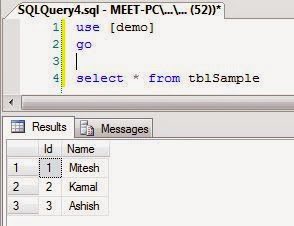
Let's assume we have table with below populated data.


Now to remove column name "Extra" from the above table,use below query(without double quotes)

"alter table tblSample drop column Extra"


Now check the table data after executing above query.


Thursday, August 21, 2014

Could not load file or assembly 'AjaxMin, Version=4.97.4951.28478, Culture=neutral, PublicKeyToken=21ef50ce11b5d80f' or one of its dependencies. The system cannot find the file specified.

The given error indicates that the project bin directory(folder) is missing AjaxMin.dll.So,in order to solve given error follow below steps:

Step 1:-Copy AjaxMin.dll from the ajaxtoolkit extracted folder.

Step 2:- Paste the above copied AjaxMin.dll file to your project bin folder.

Step 3:- Build your project.And you are good to go.

Have a great coding!!!

Saturday, June 28, 2014

How to Upload Multiple Files using HTML 5 in asp.net web form application

Note:This article is featured as the article of the day at Asp.Net Community.

Introduction:
Article discuss about how to upload multiple file in asp.net web form application using html5.

Procedure:
1) Create a new ASP.NET Empty Web Application project as shown below


2) Add new web form and named it Demo.aspx.

3) Now Replace the body of the Demo aspx page with below code

<body>
    <form id="form1" runat="server">
    <div>
 
        <asp:FileUpload ID="FileUpload1" runat="server" AllowMultiple="true" />&nbsp;
        <asp:Button ID="btnUpload" runat="server" OnClick="btnUpload_Click" Text="Upload" />
        <br />
        <br />
        <asp:Label ID="lblOutput" runat="server" ForeColor="#00CC00"></asp:Label>
 
    </div>
    </form>
</body>

4)Now in order to save uploaded images create a folder named "Images" under the root of the project as shown below


5) Now add the following code for the upload button click event
 protected void btnUpload_Click(object sender, EventArgs e)
        {
            if(FileUpload1.HasFiles)
            {
                string path = Server.MapPath("~/Images/");
                foreach(HttpPostedFile file in FileUpload1.PostedFiles)
                {
                    try
                    {
                        file.SaveAs(Path.Combine(path, file.FileName));
                        lblOutput.Text += "File Uploaded is : " + file.FileName+"<br />";
                    }
                    catch(Exception ex){
                        lblOutput.Text="Error happens while uploading your file "+ex.Message;
                        return;
                    }
                }
            }
        }
6) Now build and run the page.


7) Now click show all files in the solution explorer in order to view all uploaded files in Images folder as shown below:-


Have a great Coding.

Wednesday, June 4, 2014

How to integrate ankhsvn to Visual studio

Follow below steps in order to integrate ankhsvn with visual studio

1) Download ankhsvn from here

2) Open visual studio , go to Tools menu,select options


3) In the Source control option in left pane,select Plug-in Selection and in right pane for Current source control plug-in dropdown,select AnkhSVN - subversion support for visual studio


4)Now click on file menu ,select open option and click Subversion project in order to add your repository


5) Now add your repository in the url by clicking add repository url icon